In short
A Fire TV Stick is enough for most digital signage: it plays 1080p (4K on the 4K models), stays on 24/7 and costs €35–50. Install the PlainSignage app with the Downloader app, enter the 6-letter pairing code in the console, pick a template and your first screen is live in about three minutes. Software costs €14.99 per month for the first screen.
Why a €35 stick is enough
Digital signage does not need a €300 media player. A Fire TV Stick has a quad-core processor, 1–2 GB of RAM, Wi-Fi and an HDMI output, which is exactly what a signage player needs: decode images and video, render a few widgets, stay connected. PlainSignage was built to run on this class of hardware, and the app caches your content so a short Wi-Fi drop does not blank the screen.
There are limits, and it is better to know them before you buy. Basic sticks output 1080p; the Fire TV Stick 4K and 4K Max do 4K, which only matters for very large screens or fine text. Fire OS does not give apps full control of the TV over HDMI-CEC, so switching the TV itself on and off is done with a timer or a smart plug, not by the app. And Amazon occasionally restarts the stick for system updates, after which the app autostarts if you set it up as described below.
- Fire TV Stick (HD): 1080p, fine for menus, promotions and dashboards
- Fire TV Stick 4K / 4K Max: 4K output, more RAM, smoother with video-heavy playlists
- Any Fire TV Edition TV: the same app, no stick needed
- Not suitable: video walls with synchronised playback across many screens — use the Android TV box guide for that
Step 1 — Install the app with Downloader
The PlainSignage player is not in the Amazon Appstore yet, so you sideload it once. On the Fire TV, install the free Downloader app from the Appstore, then allow it to install unknown apps: Settings → My Fire TV → Developer options → Install unknown apps → Downloader → On. (If Developer options is hidden, open Settings → My Fire TV → About and click the Fire TV Stick name seven times.)
Open Downloader, type the APK address and press Go. The download is about 55 MB. When it finishes, choose Install, then Open.
- APK address: https://console.plainsignage.com/downloads/plainsignage-player.apk
- You can also type the short address shown on the Fire TV player page
- Downloader is free; you do not need a computer or USB cable
Step 2 — Pair with the 6-letter code
When the app opens for the first time it shows a six-letter pairing code on the TV. Sign in to the console on your laptop or phone, go to Screens → Add screen, type the code and give the screen a name such as “Entrance TV”. The stick connects within seconds and stays paired; you never touch the remote again to change content.
The code rotates until it is used, and only your account can claim it, so a stick that is stolen or reset cannot show your content.
Step 3 — Your first screen in three minutes
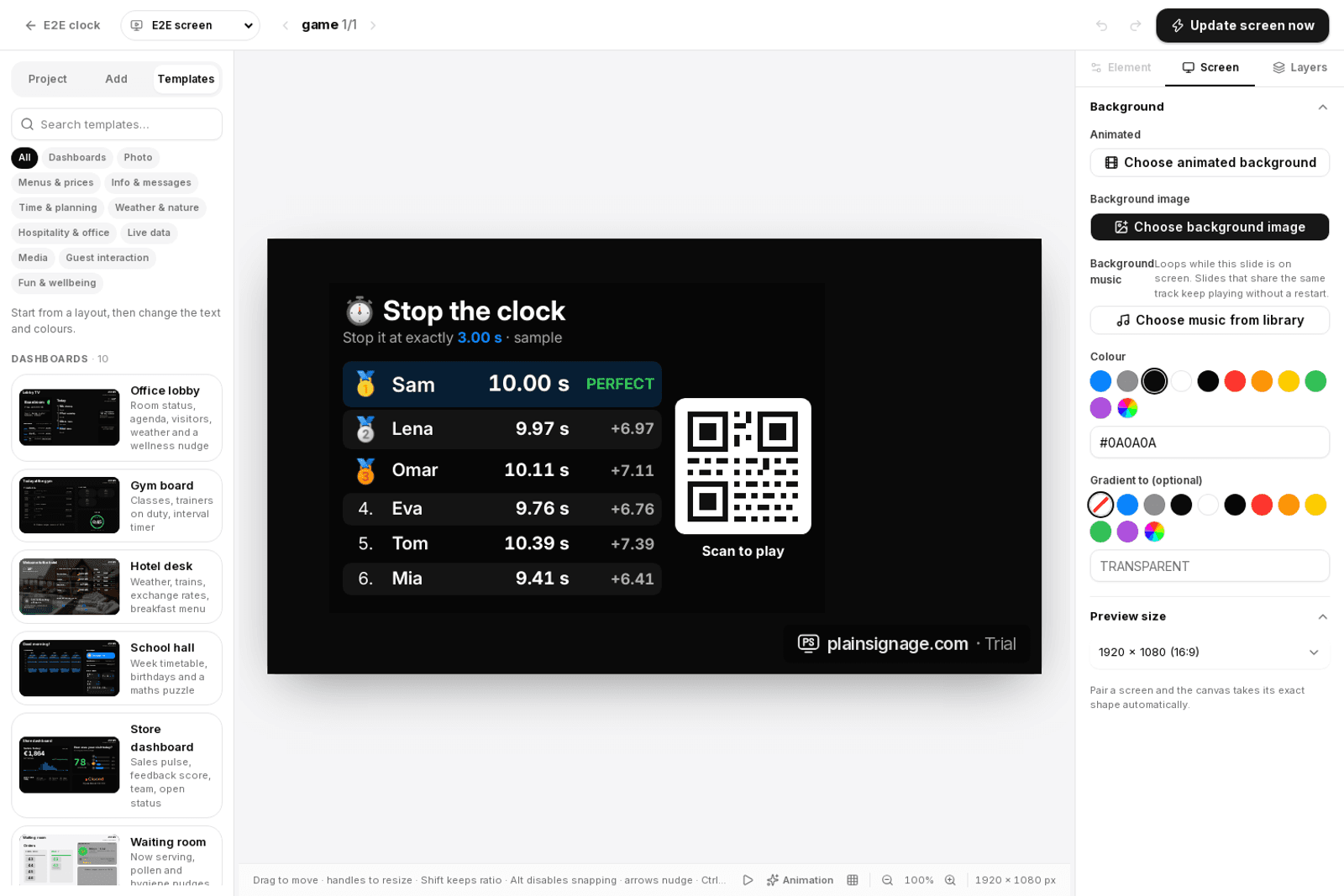
Open Designer, create a playlist and pick a template: a menu board, a welcome screen, an opening-hours card or one of the industry dashboards. Templates use your brand kit (logo, colours, font) automatically. Change the text, publish, and the Fire TV shows it within a second.
Real photos of your own screen look better in a tutorial than stock images, so if you document your setup for staff, photograph the TV rather than screenshotting the console.
- Menu board with five designs and a Google Sheet option — see the menu board widget
- Opening hours, weather, news and 70 other widgets are all included in the one plan
- Schedules switch content by time of day; screen hours switch the display off at night
Try it on your own TV
14-day free trial, no credit card. Your first screen is live in three minutes.
Step 4 — Keep it on 24/7
Out of the box a Fire TV goes to sleep after 20 minutes and shows a screensaver. Change three settings once: Settings → Display & Sounds → Screensaver → Start time → Never; Settings → My Fire TV → Sleep → set the longest interval or use the PlainSignage screen-hours schedule; and keep the stick powered from the wall adapter, not the TV’s USB port, which switches off with the TV.
Autostart: the PlainSignage app registers itself to launch after a reboot. On some Fire OS versions Amazon’s home screen wins after an update; opening the app once fixes it. If you want the TV itself to turn on and off, use a plug timer or a smart plug with a schedule; Fire OS cannot switch the panel.
- Screensaver: Never
- Sleep: longest interval, plus screen hours in PlainSignage
- Power: wall adapter, not the TV’s USB port
- Optional: smart plug schedule for the TV panel
What it costs
Hardware: a Fire TV Stick costs €35–50 depending on the model and sales. Software: PlainSignage is €14.99 per month for the first screen and €4.99 for every extra screen, one plan with every widget included and no add-ons. A café with three screens pays €24.97 per month. There is a 14-day free trial without a credit card, so you can test with one stick before buying more.
Troubleshooting
Black screen after boot: open the app once from Your Apps & Channels, then check that the screensaver is off. Wrong orientation on a portrait screen: rotate the playlist orientation in the console; Fire OS itself cannot rotate. Slow or stuttering video: use 1080p H.264 files or the 4K stick, and keep videos under 100 MB. Offline: the last published content keeps playing from the cache; the console shows the screen as offline and can email you after a set number of minutes.
Fire TV Stick or Android TV box?
Both run the same PlainSignage app. A Fire TV Stick is cheaper, easier to buy and works with Amazon’s remote; an Android TV box or a Google TV box has full Google Play access (so no sideloading), more ports and usually more RAM. For a single menu board or a lobby screen, the stick is the pragmatic choice; for many screens or video walls, choose boxes. The Android TV setup guide covers the box route.
Frequently asked questions
Fire TV Stick or Android TV box for digital signage?
For one to three screens showing menus, offers or dashboards, a Fire TV Stick (€35–50) is enough. Choose an Android TV or Google TV box when you want Google Play installation, Ethernet, or many screens with heavy video.
What happens when the internet drops?
The player keeps showing the last published content from its cache. Widgets that need live data (weather, news) show their last values until the connection returns. The console marks the screen offline and can email you.
Does it support 4K?
The Fire TV Stick 4K and 4K Max output 4K; the basic stick outputs 1080p. For text-heavy menus viewed from a few metres, 1080p is indistinguishable.
Do I need a computer to install the app?
No. The Downloader app on the Fire TV fetches the APK directly. You only need a phone or laptop to sign in to the console and enter the pairing code.
Will Amazon updates break the setup?
System updates restart the stick; the PlainSignage app autostarts afterwards. Occasionally Fire OS shows its home screen first — open the app once and it stays.