In short
PlainSignage is on Google Play for Android TV, Google TV and Android tablets. Install it from the store, enter the 6-letter pairing code in the console, pick a template and the screen is live — about three minutes from install to first slide. This guide covers the install, pairing, autostart and the four problems people actually run into.
Before you start
You need a TV or box with Android TV or Google TV (Android 7 or newer), an internet connection for the TV, and a free PlainSignage account. Create the account first in a browser at console.plainsignage.com — the 14-day trial needs no card. Fire TV Sticks do not have Google Play; use the Fire TV guide and the APK instead.
- Android TV / Google TV: Sony, Philips, TCL, Hisense, Xiaomi, Nvidia Shield, Chromecast with Google TV, most Android boxes
- Android tablets: install the same app for a portrait screen or a door sign
- Not on Google Play: Fire TV — see the APK route
Step 1 — Install from Google Play
Open PlainSignage on Google Play — or on the TV: on the TV, open the Google Play Store, search for “PlainSignage” and press Install. The app is about 55 MB. You can also install it from a phone or laptop: open the store listing in a browser, sign in with the same Google account as the TV, and choose the TV as the target device — it installs remotely.
When the install finishes, open the app. It shows a six-letter pairing code in big type and nothing else; it does not ask for an account on the TV itself.
Step 2 — Pair the screen
In the console go to Screens → Add screen, type the six letters and give the screen a name such as “Entrance TV”. The TV switches from the code to your content within a few seconds. Pairing is one-time: the TV stores its own device token and reconnects by itself after a reboot or an internet outage.
If the code has expired (they rotate for security), press the back button on the remote to get a fresh one.
Step 3 — Your first screen from a template
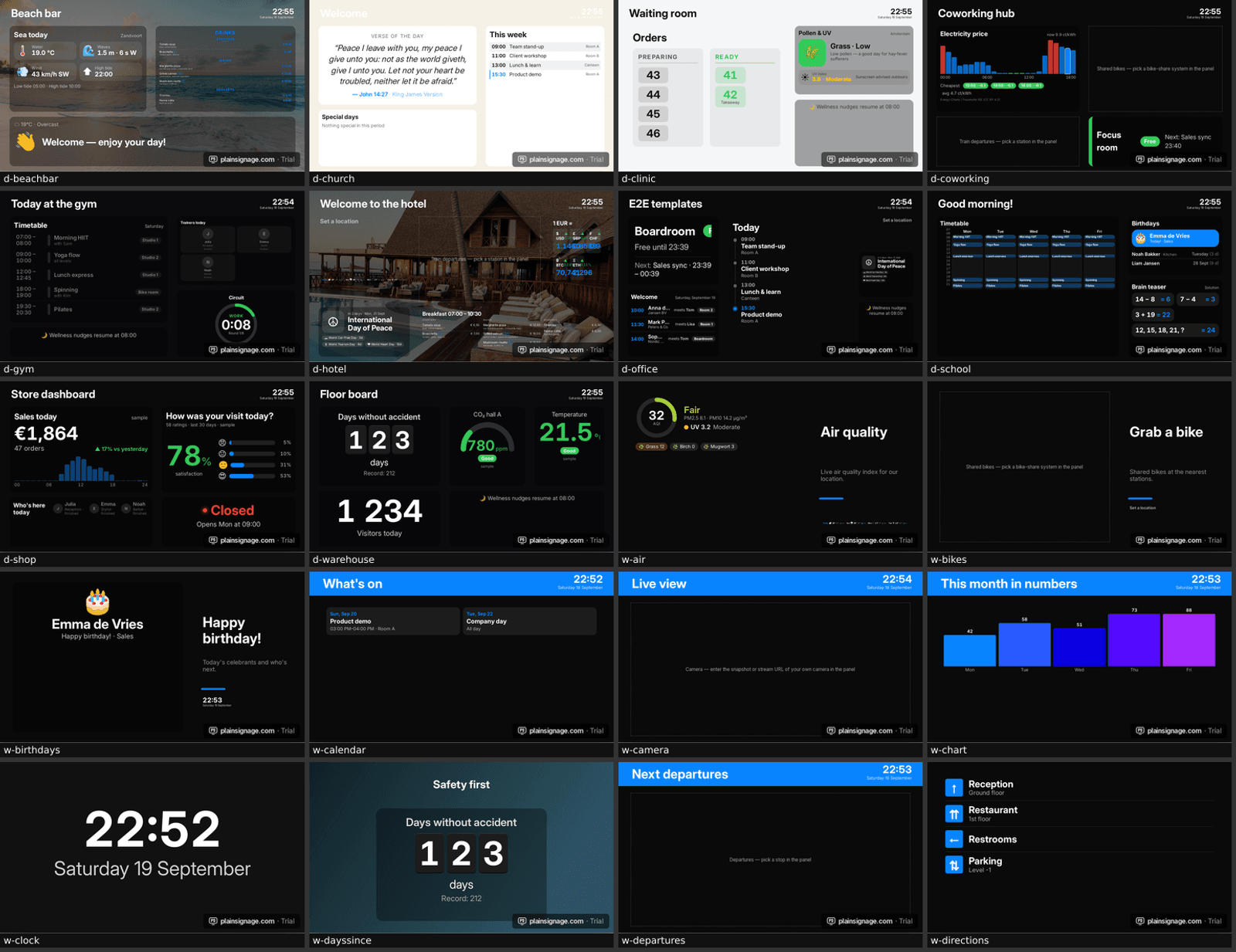
Open Playlists, create one and choose a template — there are 100, one for every widget plus dashboards for offices, gyms, hotels and shops. A menu board, a welcome screen with the clock and weather, or a timetable is a good first pick. Change the text, add your logo from the brand kit and press Publish. The TV updates instantly; the same slide is rendered identically in the browser preview and on the TV.
Assign the playlist to the screen under Screens, or set a schedule so breakfast and lunch content switch automatically.
Try it on your own TV
14-day free trial, no credit card. Your first screen is live in three minutes.
Step 4 — Keep it running 24/7
Three settings on the TV make the difference between a screen that works for a week and one that works for a year. First, allow the app to start at boot: Settings → Apps → PlainSignage → enable autostart (the wording differs per brand; on Google TV it is under “Special app access” or the app opens by itself after a reboot). Second, disable the screensaver and the sleep timer in Settings → Display, or use the console's screen hours to turn the panel off at night instead. Third, plug the TV into a smart plug or timer if it does not support wake-on-power, so a nightly power cycle brings it back with the app open.
The player caches all content, so a dropped Wi-Fi connection does not blank the screen; it keeps playing the last playlist and syncs when the network returns.
Troubleshooting
Black screen after pairing: the playlist is empty or not assigned. Open Screens in the console and check the assigned playlist; the screen's status also shows whether it is online. Wrong orientation on a rotated TV: set the orientation on the screen in the console (landscape, portrait, or flipped) — the app rotates the content, so you do not need to change the Android display settings. Screen shows “offline” in the console: the TV lost internet; content keeps playing from cache, and the console emails you if it stays offline for longer than the minutes you set. Video stutters: use H.264 MP4 at 1080p; cheap boxes cannot decode 4K HEVC smoothly.
Still stuck? The help center in the console has the install guide with screenshots and a troubleshooting list, and you can email support from there.
- Black screen → assign a playlist
- Rotated TV → set orientation in the console, not on the TV
- Offline → check Wi-Fi; content keeps playing from cache
- Stutter → 1080p H.264 video
What it costs
The app is free. A screen costs €14.99 per month and every extra screen €4.99 per month, one plan with every widget included, no contract — see pricing. The trial runs 14 days without a card; screens keep playing when you subscribe, nothing needs re-pairing.
Frequently asked questions
Is the app free?
Yes. The player app is free on Google Play. Screens are billed through the console: €14.99 per month for the first screen, €4.99 for each extra screen, after a 14-day free trial.
Which Android TVs are supported?
Any Android TV or Google TV device on Android 7 or newer: Sony, Philips, TCL, Hisense, Xiaomi, Nvidia Shield, Chromecast with Google TV and most Android boxes. Android tablets work too.
Does the TV need an account?
No. The TV only shows a pairing code. You pair it from your console account in the browser.
What happens when the internet drops?
The player keeps playing the cached playlist and reconnects automatically. The console shows the screen as offline and can email you.
Can I install on a Fire TV Stick?
Not from Google Play — Fire TV uses the Amazon store. Install the APK with the Downloader app instead; the pairing and everything else is identical.